





Preview • Install • Overleaf • Usage • Environments • Customization • Examples • Full docs
A LaTeX package for typesetting AI chat transcripts: user/assistant messages, reasoning ("thinking") traces, tool-call traces, and image/file attachments, styled as a **terminal**, **web**, or **desktop** chat UI, in light or dark theme. ## Preview | Web | Terminal (dark) | |---|---| | 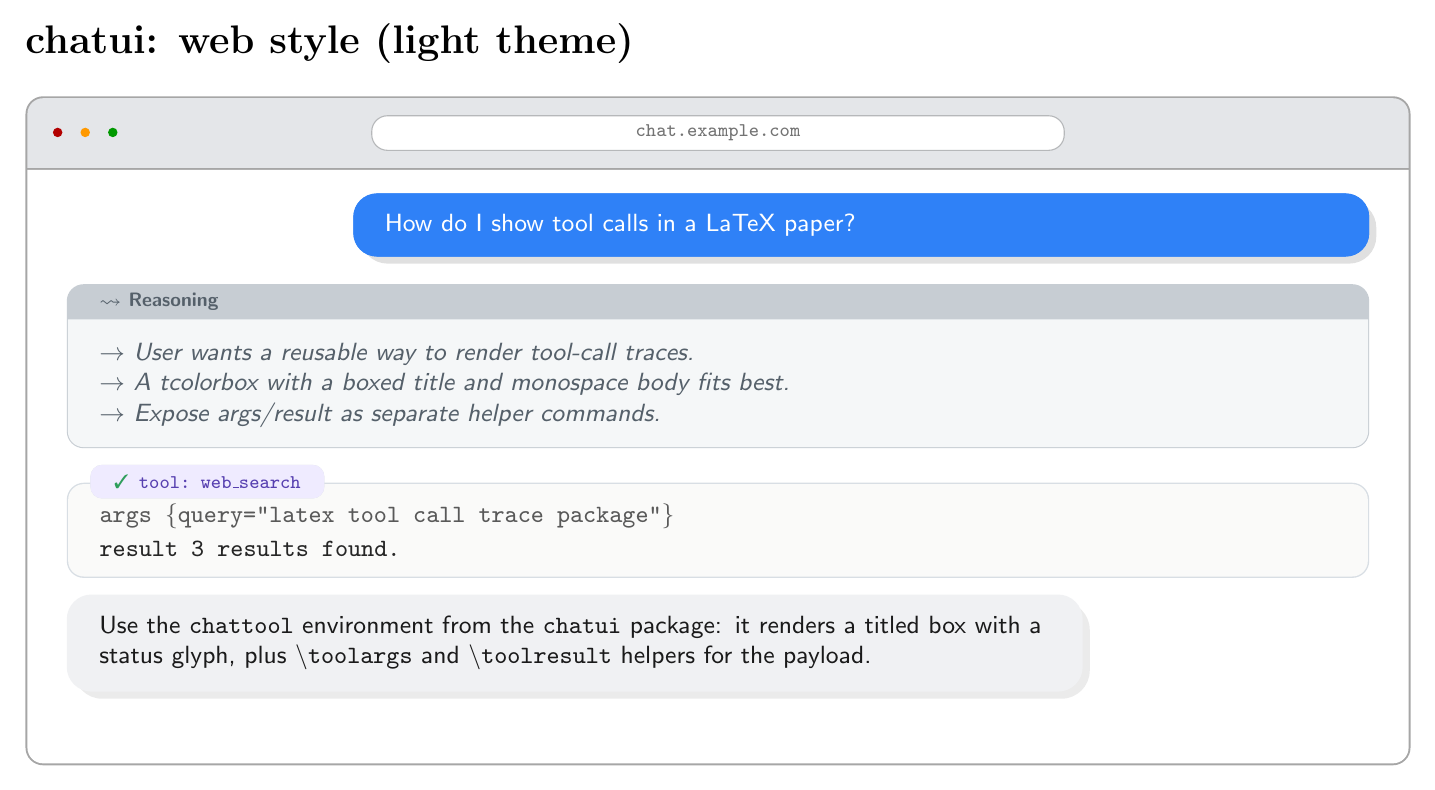 | 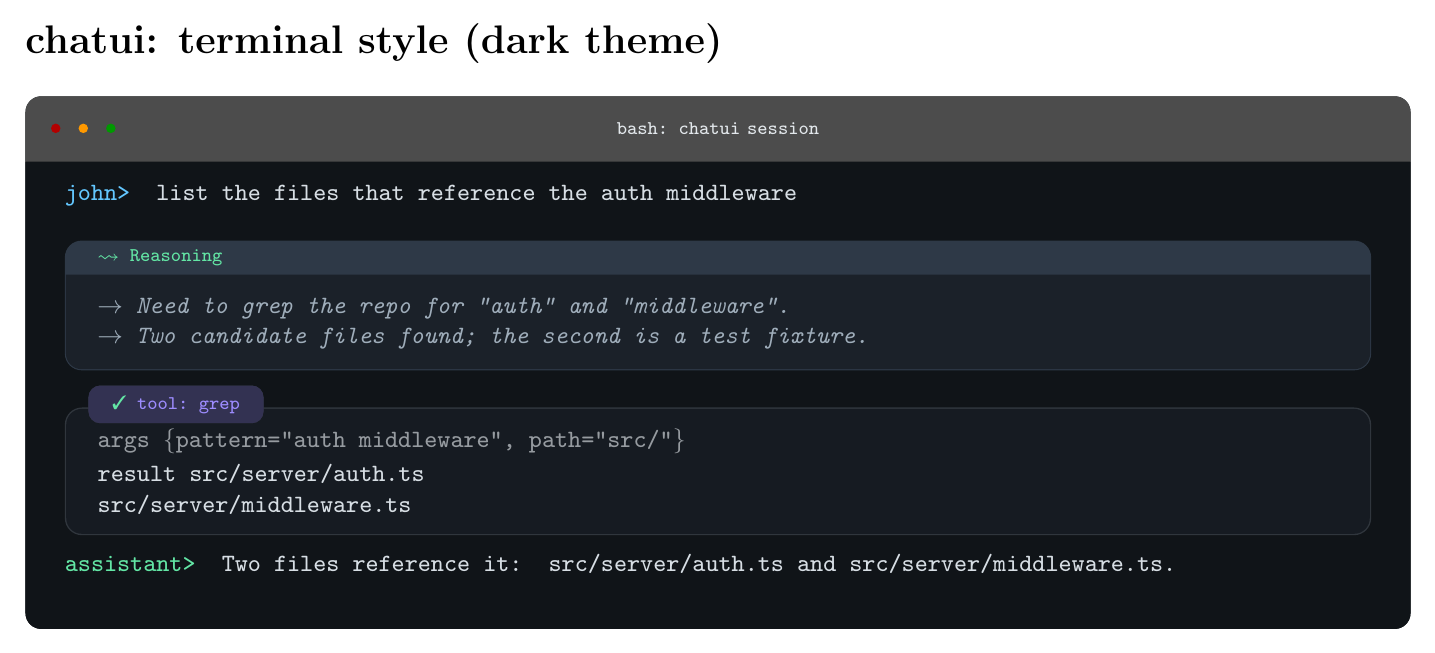 | | Desktop | Tool-call kinds (cli / code / api) | |---|---| | 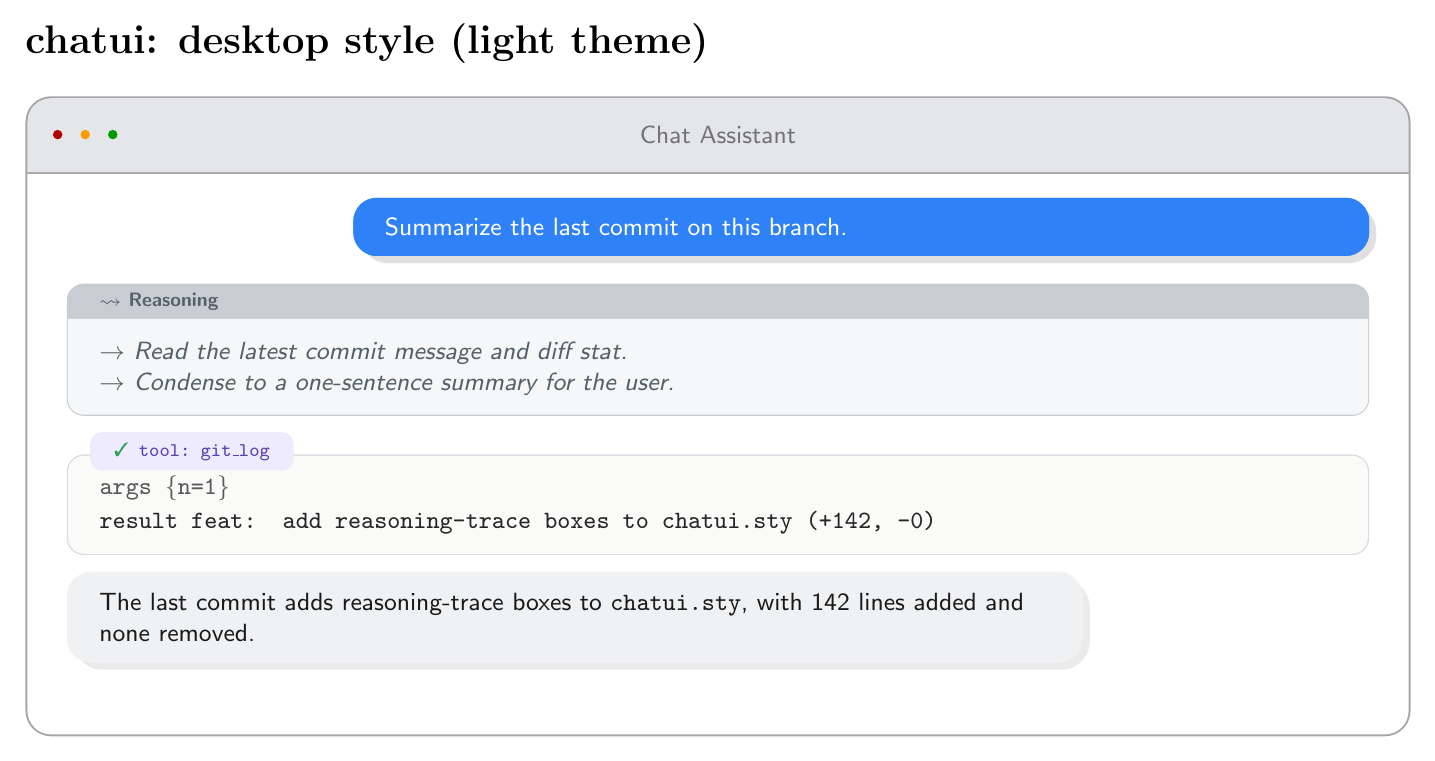 | 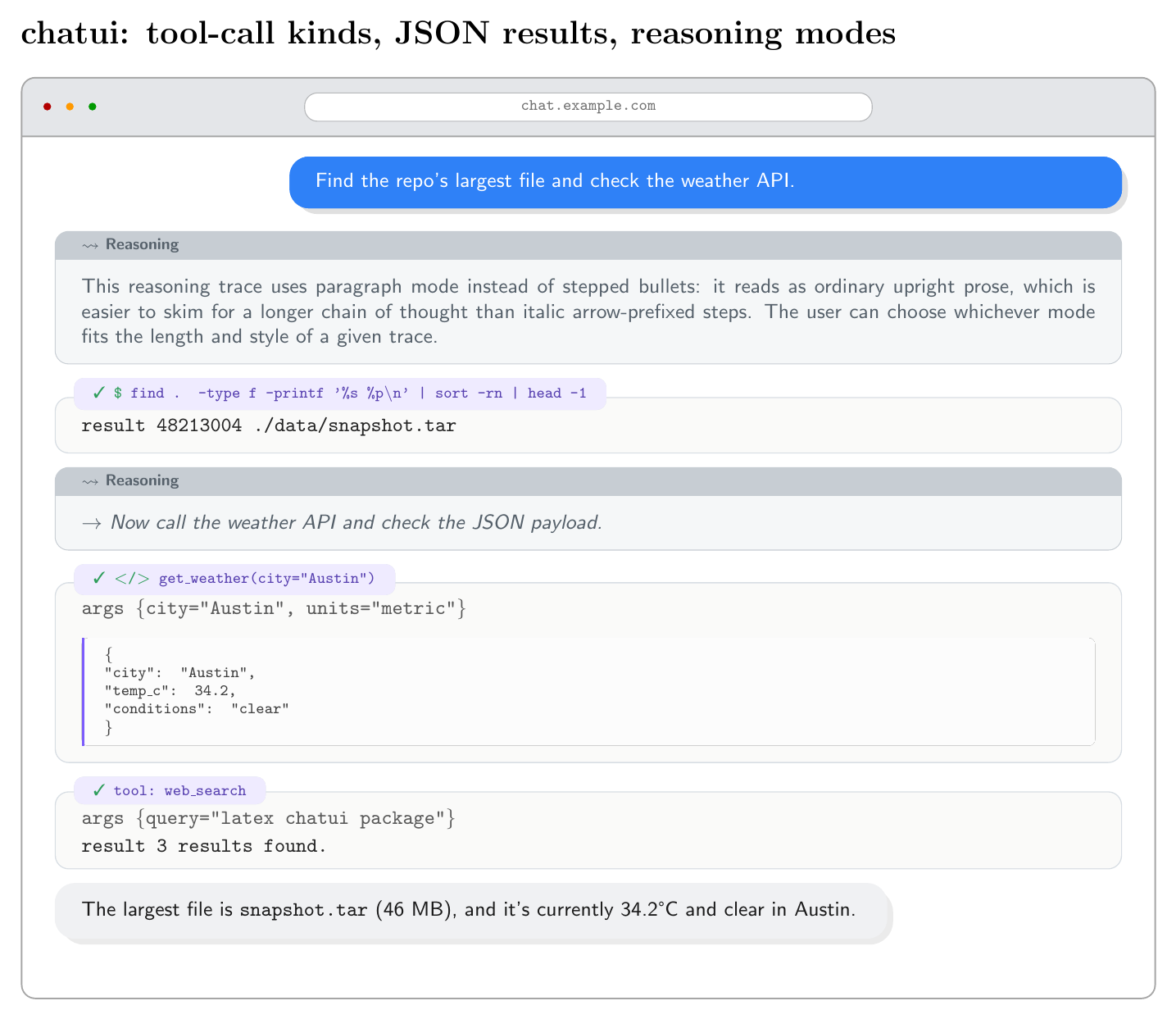 | More combinations (light/dark per style, attachments, page breaks, custom themes) are in [`examples/`](examples/). ## Install **Quickest:** drop `chatui.sty` next to your `.tex` file. Works anywhere, no path setup needed. **From CTAN**, once published: `tlmgr install chatui` (TeX Live) or via the MiKTeX package manager. **From GitHub**, for the latest version before it hits CTAN, or to track a specific commit: ```sh git clone https://github.com/TechyNilesh/chatui.git ``` Then either copy `chatui.sty` next to your project, or install it into your personal texmf tree so every document on your machine can find it: ```sh mkdir -p "$(kpsewhich -var-value TEXMFHOME)/tex/latex/chatui" cp chatui/chatui.sty "$(kpsewhich -var-value TEXMFHOME)/tex/latex/chatui/" texhash "$(kpsewhich -var-value TEXMFHOME)" # or: mktexlsr ``` (`kpsewhich -var-value TEXMFHOME` prints your personal texmf root, e.g. `~/texmf` on Linux, `~/Library/texmf` on macOS, or `%USERPROFILE%\texmf` on Windows with MiKTeX.) ## Using on Overleaf Overleaf doesn't have a texmf tree you can install into directly, but a single `.sty` file works fine as a project upload: 1. Download [`chatui.sty`](https://raw.githubusercontent.com/TechyNilesh/chatui/main/chatui.sty) (right-click -> Save As, or `curl -O` it). 2. In your Overleaf project, click **New File -> Upload** (or drag and drop) and add `chatui.sty` to the project root, the same folder as your main `.tex` file. 3. Use it exactly as documented: `\usepackage[style=web]{chatui}`. No further setup needed. Overleaf finds any `.sty` file sitting next to your document automatically. Once `chatui` is accepted on CTAN, Overleaf will eventually pick it up through its own periodic TeX Live sync, and `\usepackage{chatui}` will work without uploading anything. That sync isn't instant though, so the manual upload above is the reliable path in the meantime. ## Usage ```latex \usepackage[style=web]{chatui} % style = terminal | web | desktop \begin{chatconversation}[chat.example.com] \begin{chatuser}[John Doe] How do I show tool calls in a LaTeX paper? \end{chatuser} \begin{chatthinking} \tstep{User wants a reusable way to render tool-call traces.} \tstep{A titled box with a monospace body fits best.} \end{chatthinking} \begin{chattool}{web_search} \toolargs{query="latex tool call trace package"} \toolresult{3 results found.} \end{chattool} \begin{chatassistant} Use the \texttt{chattool} environment: it renders a titled box with a status glyph, plus \texttt{\textbackslash toolargs} and \texttt{\textbackslash toolresult} helpers. \end{chatassistant} \end{chatconversation} ``` ## Environments | Environment | Purpose | |---|---| | `chatconversation[title]` | Outer window chrome (terminal bar / browser bar / macOS title bar) | | `chatuser[name]` | User message bubble | | `chatassistant[name]` | Assistant message bubble | | `chatthinking[title][mode]` | Reasoning/thinking trace box. `mode` = `steps` (default, use `\tstep{...}` per bullet) \| `paragraph` (plain upright prose). | | `chattool[status][kind]{name}` | Tool-call trace box. `status` = `ok` \| `error` \| `running`. `kind` = `api` (default, "tool: name" chip) \| `cli` (shell-style "$ name") \| `code` (function-call style " name"). Use `\toolargs{...}`, `\toolresult{...}`, and `\tooljson{...}` inside. | `\chatimage[width]{path}` and `\chatfile{name}{size}`: use inside `chatuser`/`chatassistant` (or standalone) to show an attached image or file. `\chatimage` clips to the bubble's own corner radius; `\chatfile` renders a small bordered chip with a document icon, filename, and size. See `examples/x-tool-kinds/example-attachments.tex`. ## Package options - `style`: `terminal` (monospace, shell-prompt look), `web` (rounded chat bubbles + browser chrome, default), or `desktop` (macOS-style window with traffic-light dots). - `theme`: `auto` (default: terminal is dark, web/desktop are light), `light`, or `dark`. Dark mode uses the same palette across all three styles. ## Customizing colors Every color is a plain `xcolor` name, redefine any of them after loading the package, with a named color, a mix, or a raw hex code: ```latex \usepackage[style=web]{chatui} \colorlet{chatuiUserBg}{teal} % named xcolor \colorlet{chatuiAssistantBg}{gray!10} % mixed \definecolor{chatuiToolAccent}{HTML}{7C5CFC} % raw hex ``` Available: `chatuiUserBg/Fg`, `chatuiAssistantBg/Fg/Border`, `chatuiThinkBg/Border/Fg`, `chatuiToolBg/Border/Accent`, `chatuiOk`, `chatuiErr`, `chatuiWarn` (status glyphs and `chattool` accents), plus the window-chrome colors `chatuiAppBg/Text/Chrome/ChromeText`, `chatuiAppPillBg/Border/Text` (web/desktop) and the `chatuiTerm*` family (terminal style). See `examples/x-tool-kinds/example-custom-theme.tex` for a worked example. ## Customizing fonts Two hooks control every font family in the package. Redefine them after `\usepackage` (and after loading any font package you want to use): ```latex \usepackage{fourier} % example serif font \renewcommand{\chatuiFontSans}{\rmfamily} % web/desktop bubbles, prose \renewcommand{\chatuiFontMono}{\ttfamily} % terminal + tool/code text ``` Only sizing (`\small`, `\scriptsize`) is fixed internally, tuned to each box's proportions; the family is entirely yours to swap. ## Long conversations and page breaks The outer `chatconversation` window is breakable and splits cleanly across pages: the chrome (title bar, dots) only draws once, on the first page, and the border/background continue seamlessly on later pages. Individual messages, reasoning boxes, and tool calls are each a single atomic unit (they don't break mid-box), so a page break always falls *between* two messages, never through the middle of one, matching how a real chat UI never splits a single message bubble. A message far longer than a full page is an unsupported edge case. See `examples/x-tool-kinds/example-long-conversation.tex`. ## Examples Organized by style under `examples/`: ``` examples/ desktop/ example-desktop-light.tex, example-desktop-dark.tex terminal/ example-terminal-light.tex, example-terminal-dark.tex web/ example-web-light.tex, example-web-dark.tex x-tool-kinds/ example-tool-kinds.tex (cli/code/api tool calls, JSON, reasoning modes) ``` Dark theme uses the same palette across all three styles. Pass `theme=dark` explicitly, or leave `theme` unset with `style=terminal` (terminal defaults to dark; web/desktop default to light). Each `.tex` file has a matching `.pdf` already built alongside it. To recompile one yourself, point `TEXINPUTS` two levels up so `pdflatex` can find `chatui.sty`: ```sh cd examples/web TEXINPUTS=../..: pdflatex example-web-light.tex ``` ## Requirements `tcolorbox` (`[most]` libraries), `tikz`, `etoolbox`, `kvoptions`, `xcolor`, `pifont`. All standard, on any full TeX Live / MiKTeX install. ## Citation If `chatui` is useful in a paper, report, or other published work, please cite it: ```bibtex @software{chatui2026, author = {Verma, Nilesh}, title = {{chatui}: A LaTeX Package for Typesetting AI Chat Transcripts}, year = {2026}, version = {1.0.0}, url = {https://github.com/TechyNilesh/chatui}, note = {LaTeX Project Public License (LPPL) 1.3c} } ``` A machine-readable citation is also available in `CITATION.cff` (GitHub surfaces this automatically via the "Cite this repository" button). ## License LPPL 1.3c. See `LICENSE`.